– Create a Database User: Create a user in Odoo specifically for API access with sufficient read privileges for the tables you want to analyze in Power BI.
- Prepare Your Odoo Database
– Enable API Access: Ensure that Odoo’s external API access is enabled. This is typically done through Odoo’s XML-RPC or JSON-RPC interface.
– Create a Database User: Create a user in Odoo specifically for API access with sufficient read privileges for the tables you want to analyze in Power BI.
- Install the Necessary Libraries
– Python Connector: You may need to install the `pandas` and `odoo` libraries if you are using Python as an intermediary to pull data into Power BI. You can install them using:
pip install pandas odoo

- Extract Data from Odoo
– Using Python Script:
- Write a Python script to connect to your Odoo instance, fetch the data, and load it into a format that Power BI can understand (e.g., a Pandas DataFrame).
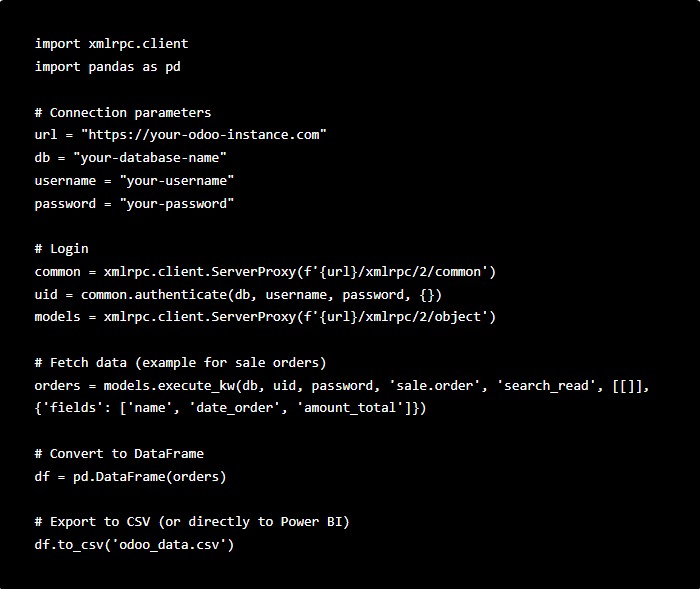
- The script should look something like this:
import xmlrpc.client
import pandas as pd
Connection parameters
url = "https://your-odoo-instance.com"
db = "your-database-name"
username = "your-username"
password = "your-password"
Login
common = xmlrpc.client.ServerProxy(f'{url}/xmlrpc/2/common')
uid = common.authenticate(db, username, password, {})
models = xmlrpc.client.ServerProxy(f'{url}/xmlrpc/2/object')
Fetch data (example for sale orders)
orders = models.execute_kw(db, uid, password, 'sale.order', 'search_read', [[]], {'fields': ['name', 'date_order', 'amount_total']})
Convert to DataFrame
df = pd.DataFrame(orders)
Export to CSV (or directly to Power BI)
df.to_csv('odoo_data.csv')
– Using Odoo Directly:
– Odoo Studio or Custom Reports: If you use Odoo Studio or create custom reports, you can export these reports as CSV or Excel files and then import them into Power BI.
- Import Data into Power BI Desktop
– Using CSV/Excel:
- Save the extracted data as a CSV or Excel file.
- In Power BI Desktop, go to `Home` > `Get Data` > `Text/CSV` or `Excel`, and select your file.
– Using OData Connector:
– Odoo offers an OData connector in some versions. Use Power BI’s OData feed option to connect directly to your Odoo database.
– In Power BI, go to `Home` > `Get Data` > `OData Feed` and enter the OData URL provided by Odoo.
– Using Python Script Directly in Power BI:
– Power BI allows you to run Python scripts directly:
- Go to `Home` > `Get Data` > `More` > `Other` > `Python Script`.
- Paste your Python script and run it to load data directly into Power BI.
- Transform and Visualize Data
– Use Power BI’s tools to clean, transform, and visualize the data according to your needs. You can create dashboards, reports, and charts based on the Odoo data you have imported.
- Automate and Schedule Refreshes
– Schedule Data Refresh: Set up scheduled data refreshes in Power BI so that your dashboards remain up-to-date with the latest Odoo data.
– Power BI Service: If you are using Power BI Service, ensure that the refresh credentials are set up correctly for ongoing updates.
Notes:
– Security: Ensure that the connection between Odoo and Power BI is secure, especially if you’re handling sensitive business data.
– Data Volume: Be mindful of the data volume when pulling large datasets from Odoo, as it might impact performance.
Get a free 30-minute review with an Odiware Odoo consultant — bring your current setup and we'll map the fastest route to a working configuration.
 ODOO IMPLEMENTATION PARTNER